Let's Explore: Borland Paradox 4.0 - Part 2
20th May 2026
In Part 1, we ran through a quick overview of Borland Paradox 4.0 for DOS. In this Part 2, we'll go through the installation process and then look into some of its features.
Incidentally, this isn't supposed to be a tutorial - I've not used Paradox in over 30 years, but that's part of the fun, right? Let's explore together how the application worked... or perhaps didn't.
Paradox 4.0 for DOS came on four low-density 3.5" floppy disks or eight 5.25" ones depending on the version you bought, and was bundled with the all-important bunch of heavy manuals in a thick open-ended cardboard box ready for your bookshelf. The installation requires a minimum of an 80286 CPU (due to the need to run in protected mode), DOS 3.1, 1 MB of RAM or more, one floppy drive and one hard disk. The installation will use between 6 and 6.5 MB of free hard disk space. Paradox will use up to 16 MB of extended memory (XMS) if you have it.
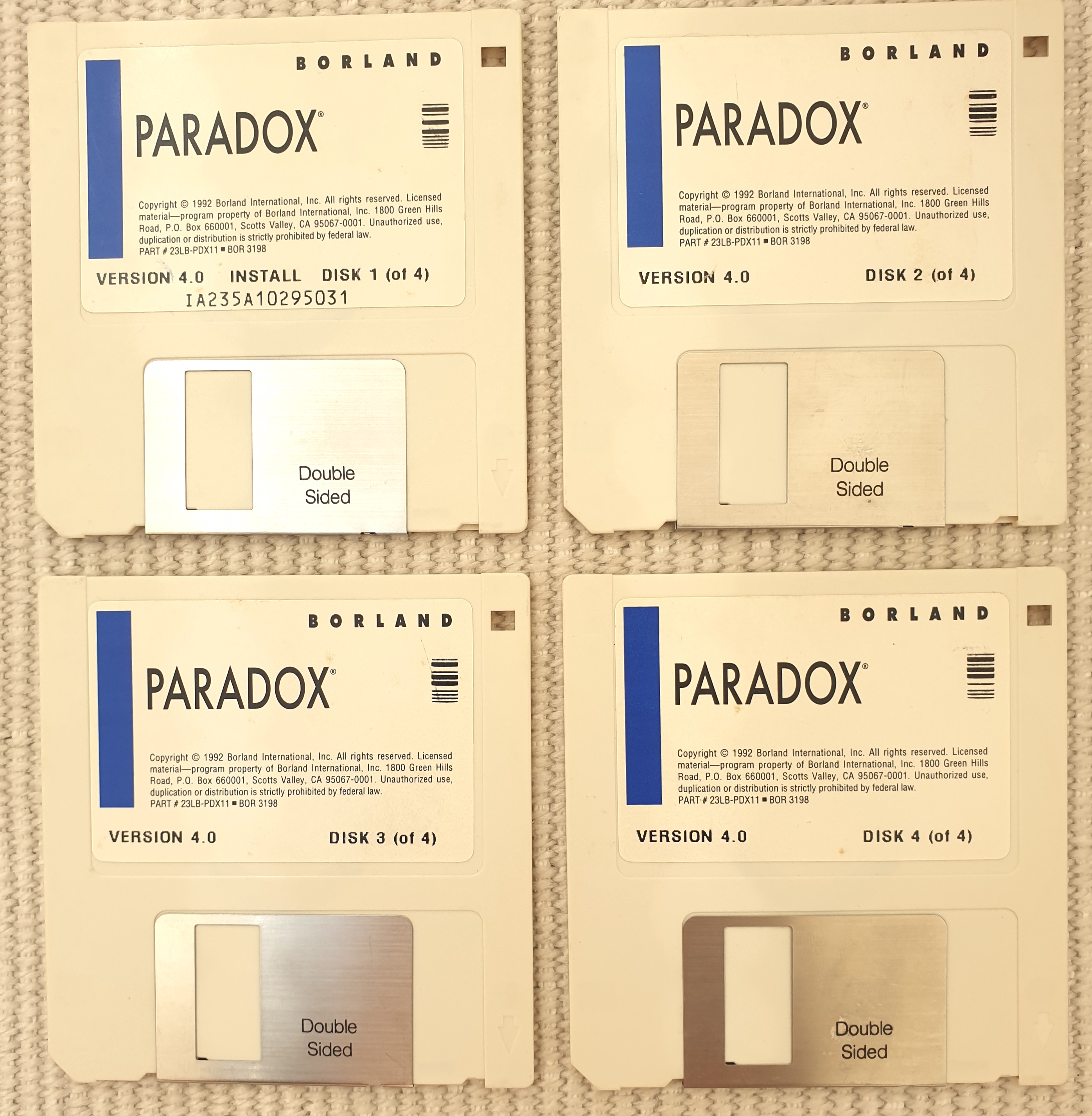
The installation disks for Paradox 4
We're not going to be using the 'LAN Pack' here, but in case you were wondering what types of network it supports, it's quite comprehensive:
- Novell Advanced Netware v2.0A or higher
- IBM PC Network or Token Ring Network with IBM PC Local Area Network Program v1.12 or higher
- 3Com 3Plus Share Network v1.5 or higher
- AT&T StarGROUP for DOS v3.1 or higher
- Microsoft LAN Manager v2.0 or higher
- Bayan Vines network v2.10 or higher
- DEC Pathworks network v1.0 or higher
Also, any networks that are NETBIOS-compatible may also work.
Installation
Installing Paradox 4.0 is simple - just insert the first floppy disk and run INSTALL.EXE, follow the on-screen prompts and away you go. Incidentally, if you have the files from the floppy disks images but no actual floppy drive, you can copy all files from all disks into a subdirectory on your hard disk, run INSTALL, choose the drive and subdirectory where all the files reside, and the installation will run just fine (you don't even need to use SUBST):
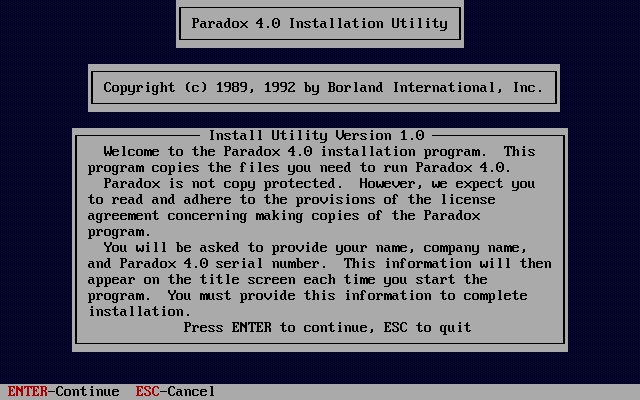
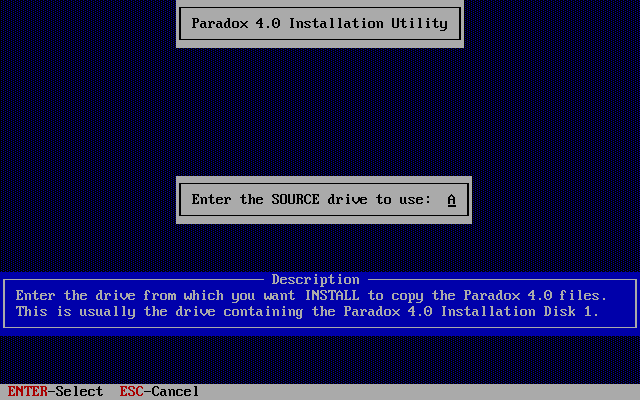
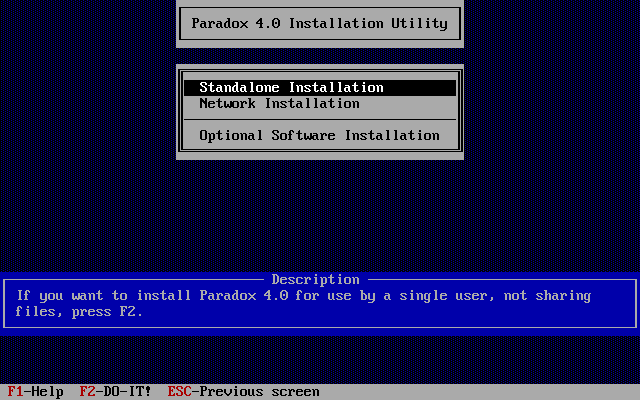
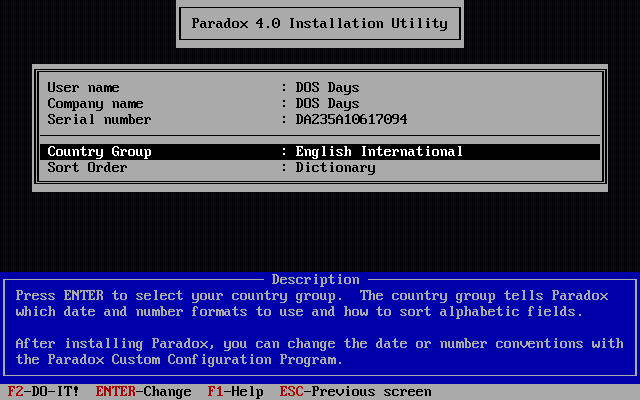
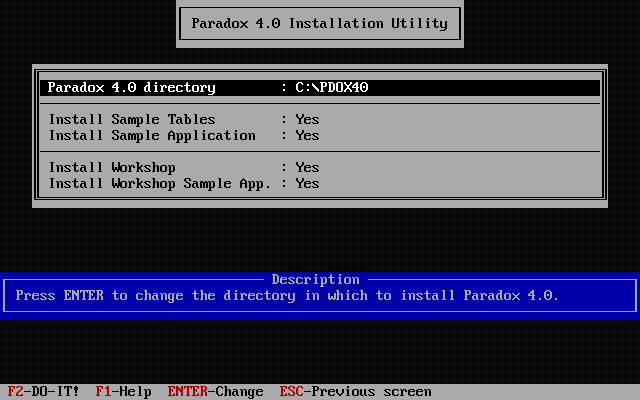
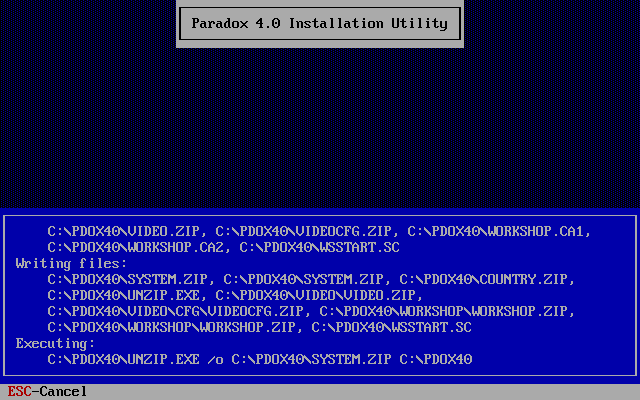
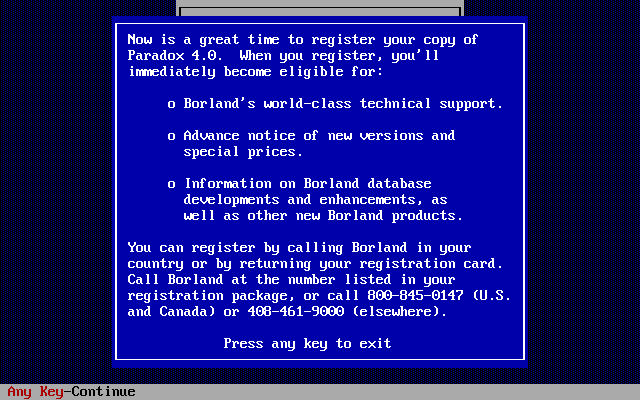
The installation screens for Paradox 4.0
Once the installation has finished, you can run the program with PARADOX.EXE. I recommend you use a mouse, but you can fully operate the application without one. If using keys only, F10 brings up the menu:
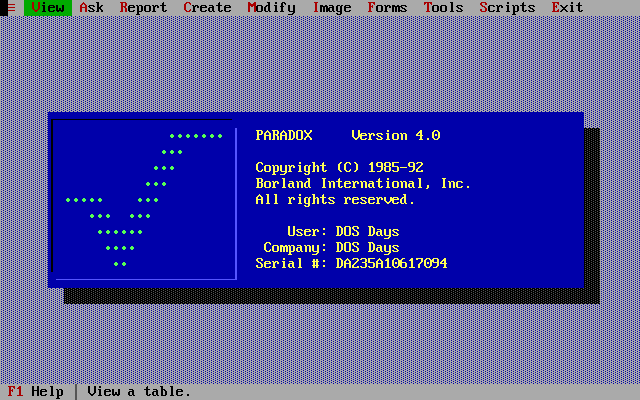
Here's a quick look at the various menus and screens before we delve further:
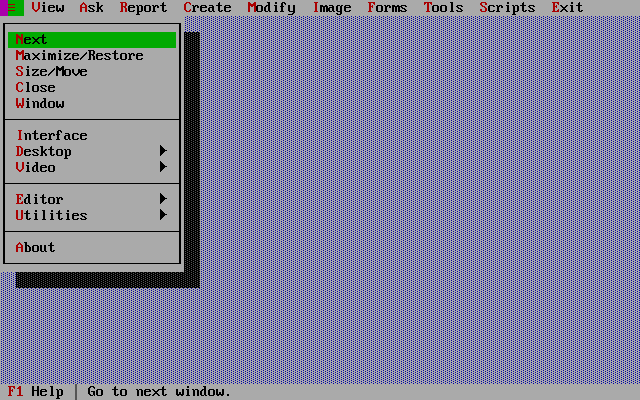
The System menu where you can choose the display options and more.
The
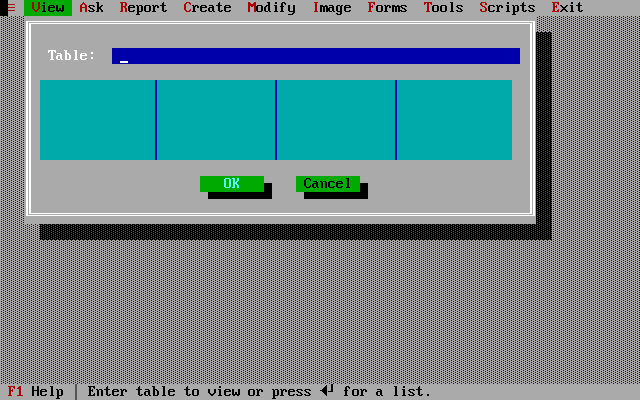
View menu, used to display a table on the screen.
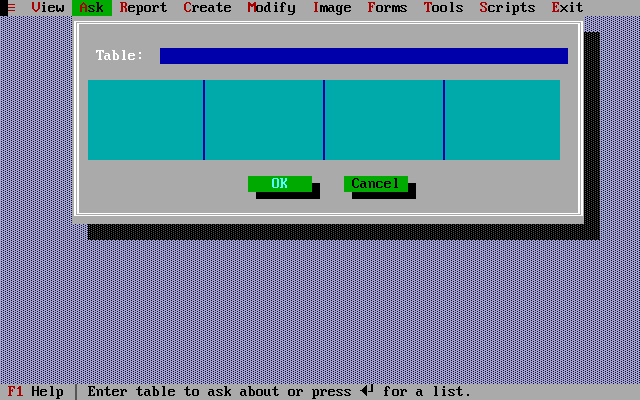
The Ask menu, to select, calculate and manipulate information contained in tables.
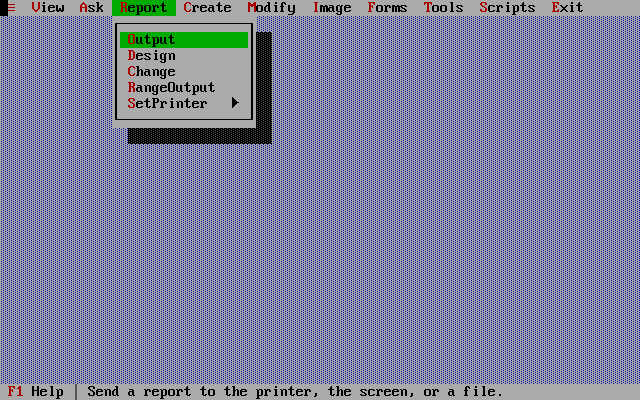
The Report menu, used to design, change or print a report based on a table or query.
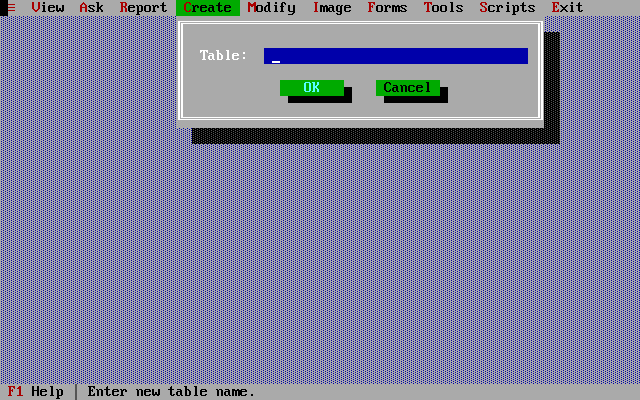
The Create menu, used to create a new table in which to store data.
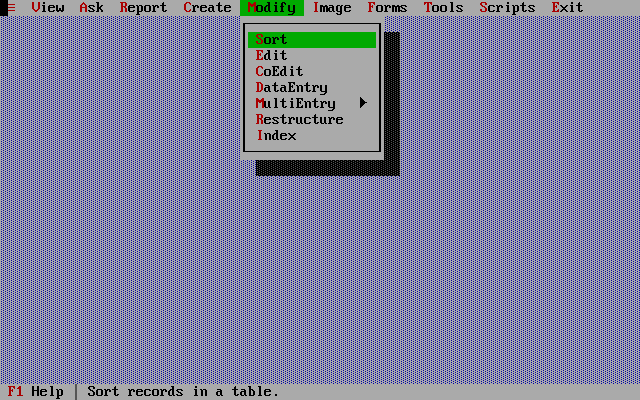
The Modify menu, used to add, change or sort information in a table, or to change the structure of a table.
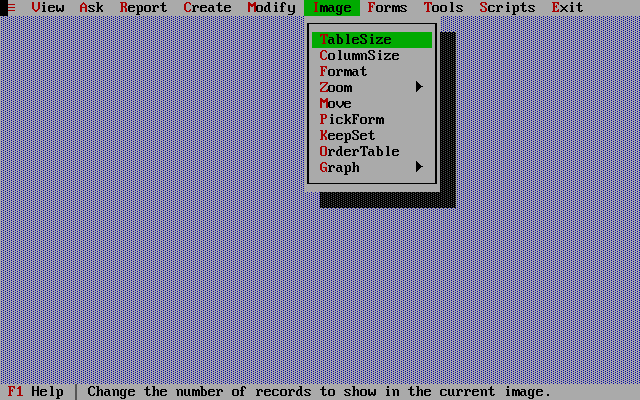
The Image menu,
used to rearrange information on the screen, to display or design a graph.
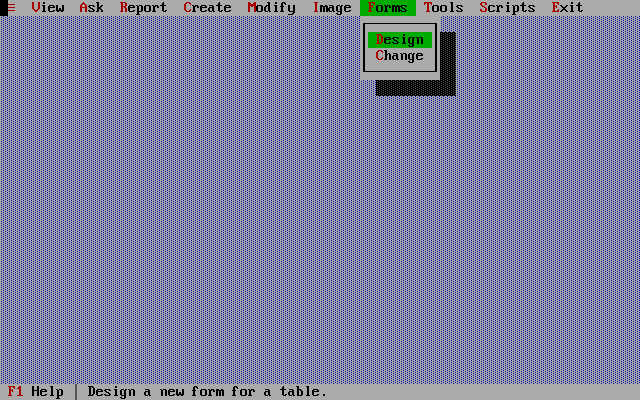
The Forms menu, used to design or change a form to display or enter information.
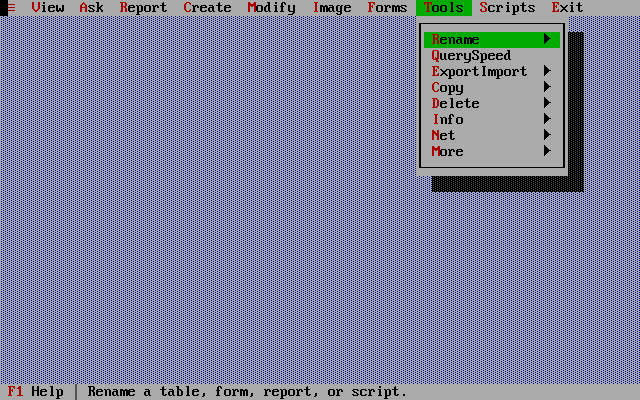
The Tools menu, used to manage the objects in your database, to convert data in Paradox tables to or from other formats, and to control network operations.
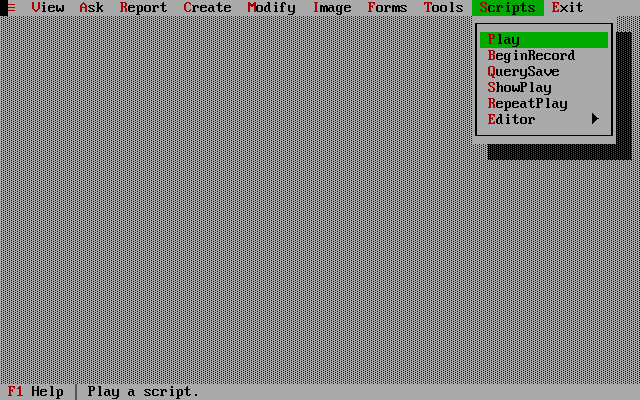
The Scripts menu, used to record or play back a repeated sequence of actions.
Borland provided a 'compatibility mode' for existing Paradox users which changed the menus to reflect Paradox 3.0 and 3.5. You do give up many excellent features of Paradox 4.0 though, as they wouldn't be accessible. You can switch between standard and compatibility mode by going to the System menu -> Interface.
The first thing that you might notice immediately is the distinct lack of a 'File' menu, or some obvious means of selecting a database to load or save. This had me stumped initially. Basically, when Paradox loads or saves files on your disk it normally goes to your 'working drive and directory'. This can be changed by going to Tools -> More -> Directory, and typing in the new drive and directory Paradox should look at. You can also change the default working directory by going into the Custom Configuration Program under the System menu -> Utilities -> Custom. This is a separate program that runs under a shell. When you're done with the configuration changes you can type 'exit' to return to Paradox.
All files for a 'database' reside in the same directory, but there's no distinct 'database' file (such as in Microsoft Access where you have a single .MDB file that holds everything for a single database and a .LDB file for temporary locking purposes). To give you an example, Paradox 4.0 comes with a directory called SAMPAPP. If you set your working directory to this, and then go to the 'View' menu and hit enter, you will now see all the tables that make up this sample database (actually, each of these is a .DB, or database file in its own right). This of course means that to backup a Paradox database you need to backup an entire subdirectory that contains all the files that make up that database.
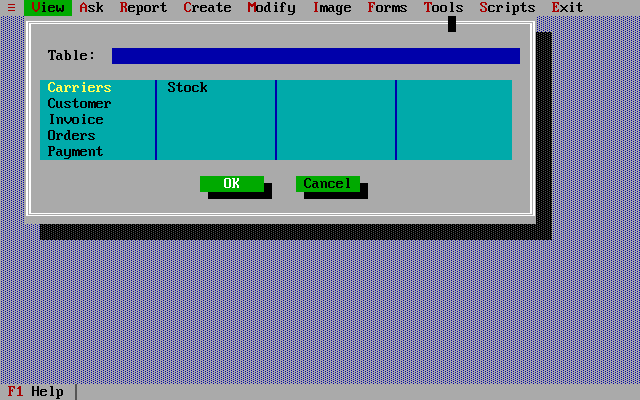
You can then select one of the tables and hit enter (or click 'OK') to view the table's data in table view:
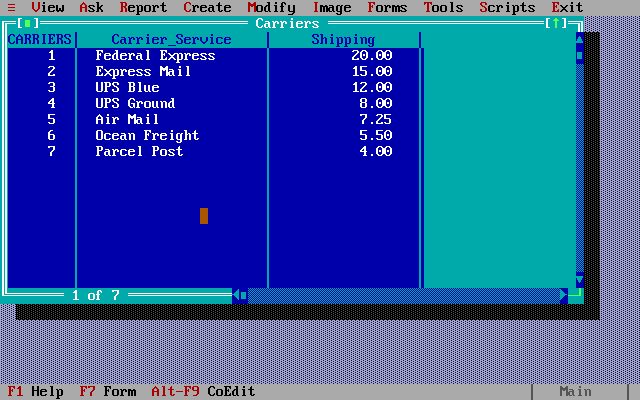
Note the fact the Carriers table view is in a window. You can have multiple windows open at any time, and in each one, maximize/restore (Shift-F5), resize to your preferred width and height (Ctrl-F5), or close them (Ctrl-F8) at will by using the green buttons in the corners of them. This is where screen real estate is critical, and you can see how Windows was really a game-changer for this reason alone - the ability to have very scalable graphical windows rather than being limited to a fixed text mode. Fortunately, Borland were very good at trying to support extended text modes if your graphics card could handle it, like this 80 x 50 mode:
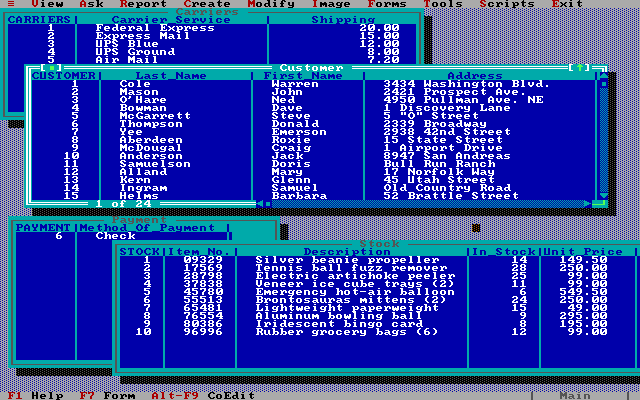
or this 132 x 43 mode:
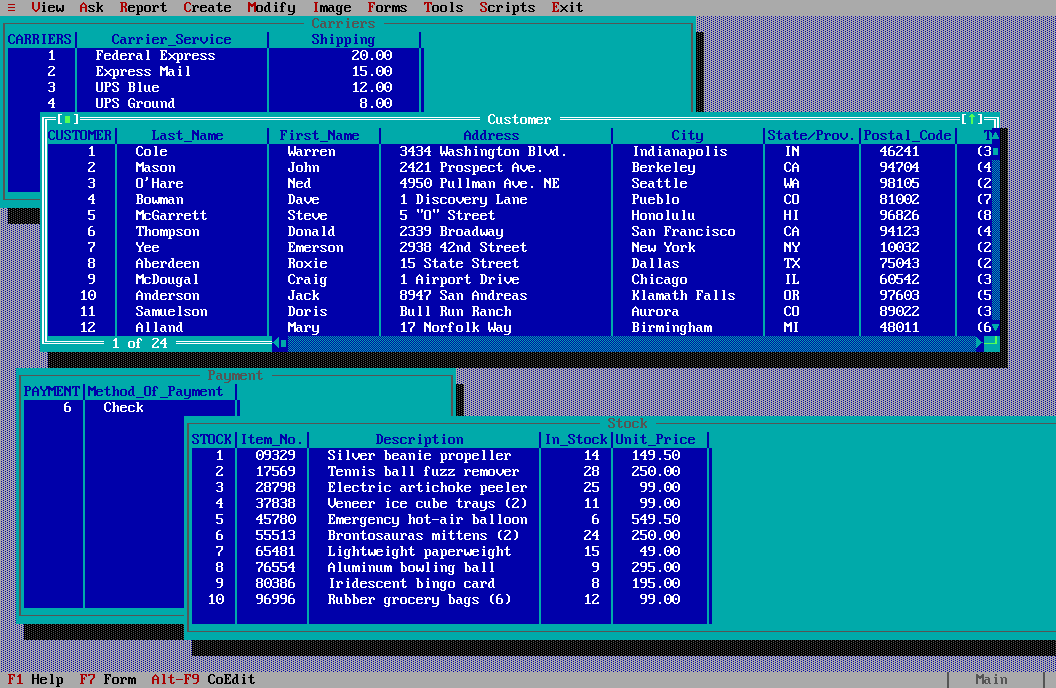
Anyway, back to the action...
While you are viewing the contents of a table like this, you can edit its contents or add new data by pressing F9 to enter 'Edit' mode, and when you're done choose 'DO-IT!'
in the menu.
Now let's look at the structure of one of these tables. To do so, click the 'Modify' menu, hit enter and choose a table you wish to see/modify the structure of. I'm choosing the 'Customer' table here:
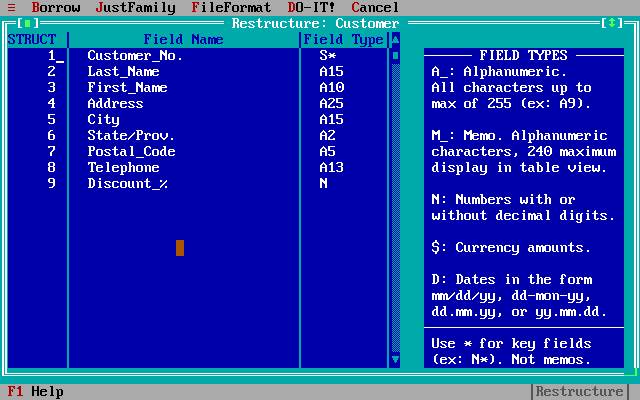
Here we can see the order of the fields, their name, the data type they will be stored as, and which fields make up the primary key.
Paradox Terminology
Perhaps because Paradox pre-dated modern databases, or because it was designed with non-professional end users in mind, it used certain terms that you'll need to become familiar with. The table below outlines some of these:
| Term | Meaning |
|---|---|
| View | To view a table. |
| Ask | Opens a query form to ask questions about (query) a table |
| Answer | The results of a query, what you might call the 'resultset' in modern nomenclature. |
| BDE | Borland Database Engine - the core engine that Paradox sits on from version 4.0 and up, after its rebuild in Borland C++. The BDE was also used by Borland Delphi and C++ Builder products. |
| Coedit | Allows several users to edit a table at once. Records being changed are locked. As opposed to 'Edit' (for single user data entry or changes) where Paradox places a full lock on the table being edited. |
| DO-IT! | Execute, or Save / commit the changes to file. |
| Image | Format the look of a table on-screen, select a form, or graph a table. |
| PAL | Paradox Active Language - a built-in programming language you can use to create or enhance your database. |
| Scripts | Essentially macros - play or record a series of keystrokes, or run a PAL program. |
| Zoom / Zoom Next | Locate the first or next occurrence of a value in a table. |
File Types and Storage
The following lists the various file extensions of files typically found in a Paradox Table directory:
| File Extension | Contents |
|---|---|
| .DB | A Paradox table. Contains all of the tables data except for what is in the MB file. |
| .FAM | Database Desktop’s listing of related files (like a table's .TV file). (not used by the BDE). |
| .LCK | Lock file. |
| .MB | BLOB file. Contains any binary data for Memo, Formatted Memo, Graphic, OLE and Binary field types. |
| .PX | Primary index. |
| .TV | Table view settings (not used by BDE). |
| .VAL | Validity checks and referential integrity. |
| .Xnn | Secondary single-field index, numbered. |
| .Ynn | Secondary single-field index, numbered. |
| .XGn | Composite secondary index, numbered. |
| .YGn | Composite secondary index, numbered. |
Data Types
Paradox 4.0 has six main data types. These are:
- A - alphanumeric (1-255 characters in length, can contain letters, numbers, special symbols). You must specify its length.
- N - number (up to 15 significant digits, including decimal places).
- $ - currency (always rounded to 2 decimal places and always includes whole number separators. Negative numbers are given parentheses automatically).
- S - short number (can only contain numbers from -32767 to 32767). These are for advanced Paradox users only. Note that there is no data entry or display formatting options for these types of fields.
- D - date (can contain any date from January 1, 100 up to December 31, 9999). You can enter or display dates in various formats, e.g. mm/dd/yyyy, dd-Mon-yy, or dd.mm.yy.
- M - memo (stored as a BLOB, or binary large object. Can contain alphanumeric characters). Up to 64 MB per record.
Keys and Indexes
Paradox fully supports the concept of primary keys. These can be on a single field in a table or multiple fields (though all fields that make up the primary key must be the first fields in the list). A unique index is automatically created based on the primary key. To set a field to be the primary key (or part of it), you insert an asterisk after the 'Field Type', for example, a short number field that acts as the primary key would have a Field Type of 'S*'.
I may have this wrong, but from what I can gather so far, the .PX file is the file that stores the details of the primary key as well as the index data associated with it. The concept of secondary indexes was also added to this version of Paradox - these [I guess] are just other indexes you create on fields to improve performance when querying data on them. Let me know if you think I have this completely wrong!
Database Locking
If you're a database developer or administrator, you will be familiar with the term 'ACID' (Atomicity, Consistency, Isolation, and Durability), which in part determines a database's data integrity through locking at the record or table level, and committing (writing the data to storage). Paradox used two different locking mechanisms throughout its life. Versions 2.0 to 3.5 used an older type of locking system. This was revised from Version 4.0 and onwards, where Paradox was rebuilt on the Borland Database Engine. This version placed a .LCK file in every directory where tables were accessed, and was used to regulate concurrent access to the table's data. This was always called 'PDOXUSRS.LCK', along with another file called 'PARADOX.LCK' for backward compatibility with older versions to prevent them from inadvertently accessing the tables and putting data at risk.
Paradox databases can still become corrupt, since they cache changes in volatile memory like most modern databases. If a database file is not closed properly, for example, due to power loss, this can happen. It can also occur in a networked environment if a workstation or the server is restarted with closing files first. Indexes can also become corrupt, especially in cases where there are a large number of indexes on a table, or the index uses a large number of segments (data blocks, if you will). Borland ship Paradox with a table repair utility that can help recover from such occurrences.
I didn't face any locking issues, though my interactions with this tiny database were minimal at best, and certainly I was the only user attempting to access and change stuff.
Database Capacities
You may have concerns about how much data Paradox 4.0 can handle. It wouldn't be good to spend a lot of time building out the structure of a database system to then find out it won't store everything you want to put into it.
Fortunately, Paradox 4.0 has huge capacity for data, disk space-permitting of course:
- Up to 2 billion records per table, with up to 4000 characters each
- 255 fields with up to 255 characters each
- Each table can have up to 15 forms and 15 reports associated with it.
These capacities are unchanged from Paradox 3.5.
In Part 3, we'll move on to querying the database and creating reports.